LifeOS
How LifeOS Works
A complete guide to planning time, tracking reality, and adapting when the day changes.
LifeOS is a calm daily planner for iPhone that helps you manage everyday responsibilities and adapt when plans change. Capture responsibilities as Tasks, reserve time in Schedule, and use Today to see what needs attention. Review helps you decide what happened; Timeline keeps your confirmed outcomes. These are connected parts of LifeOS, not steps you must complete in order.
1. Today: Current focus, Next, Other tasks today
Today brings your current context and planned responsibilities together so you can decide where to look next.
The Now, Next, Remaining model is presented through these sections:
- Current focus: The Task or reserved block shown as your current context.
- Next: What is scheduled or planned immediately after.
- Other tasks today: Other open responsibilities planned for today.

2. Tasks Hold Responsibility. Schedule Holds Reserved Time.
A planned work session and a finished Task are different things. Reserving an hour does not establish whether the work happened.
LifeOS separates responsibility from time. You can capture and plan Tasks yourself without reserving a time block for every responsibility:
- Tasks: What you are responsible for finishing. They hold context, notes, and progress.
- Schedule: Reserved time. Blocks can link to Tasks without replacing them.
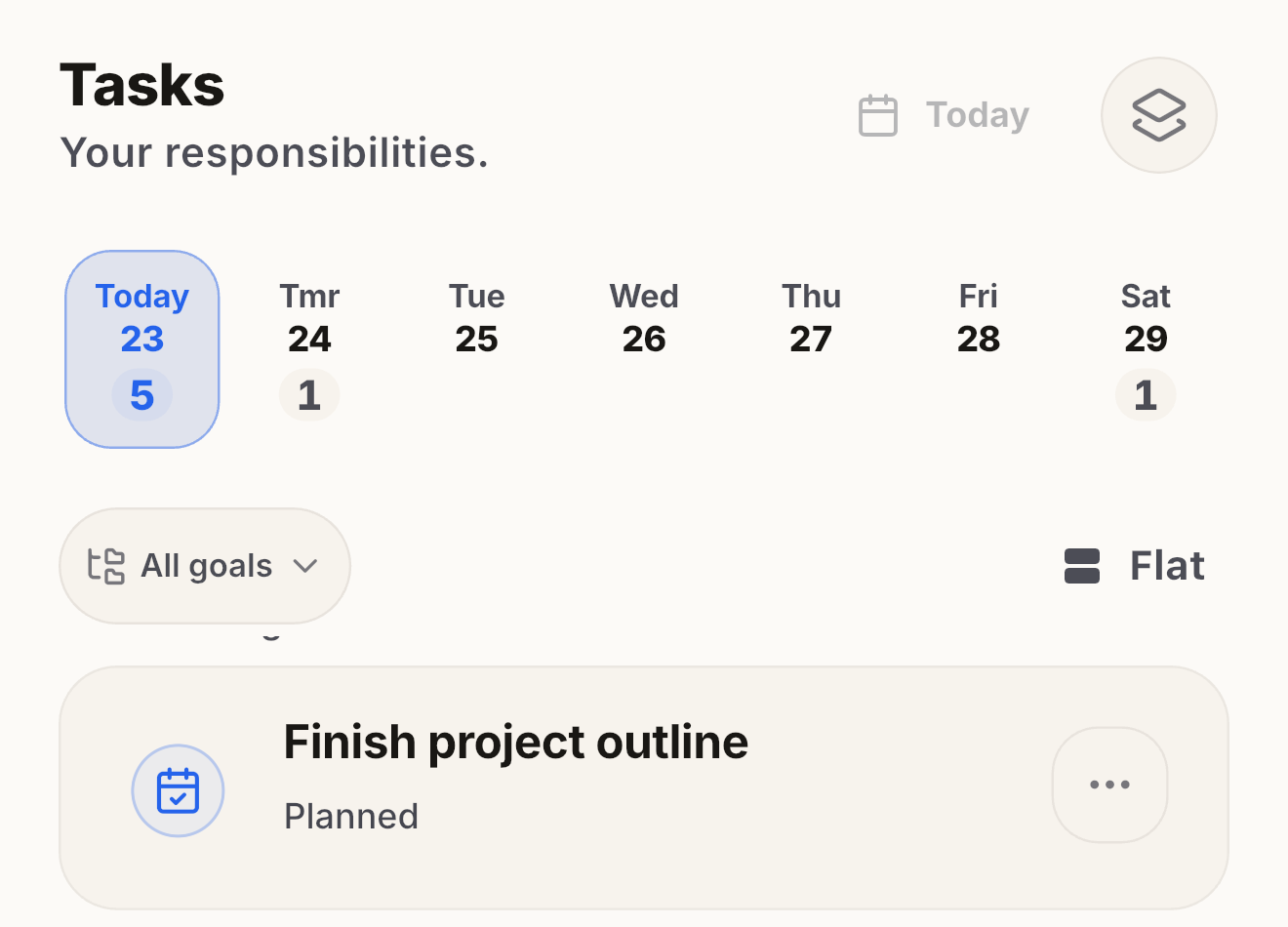
When reserved time ends, the Task stays open until you act on it. A Task is overdue only if it remains open with a passed deadline; an expired reservation alone does not make it overdue.
3. Review: Plans Change. You Decide What Happened.
When plans change, Review separates outcome decisions from planning choices. Unfinished Tasks do not automatically move into tomorrow:
- Completed: Confirm completion and choose a permitted outcome date.
- Missed: Record that the work did not happen on the reviewed day.
- Skipped: You consciously chose not to do it.
- Plan again: Choose another Task plan date. Return to Inbox removes the plan instead. Both keep the Task open; reserving Schedule time is separate.
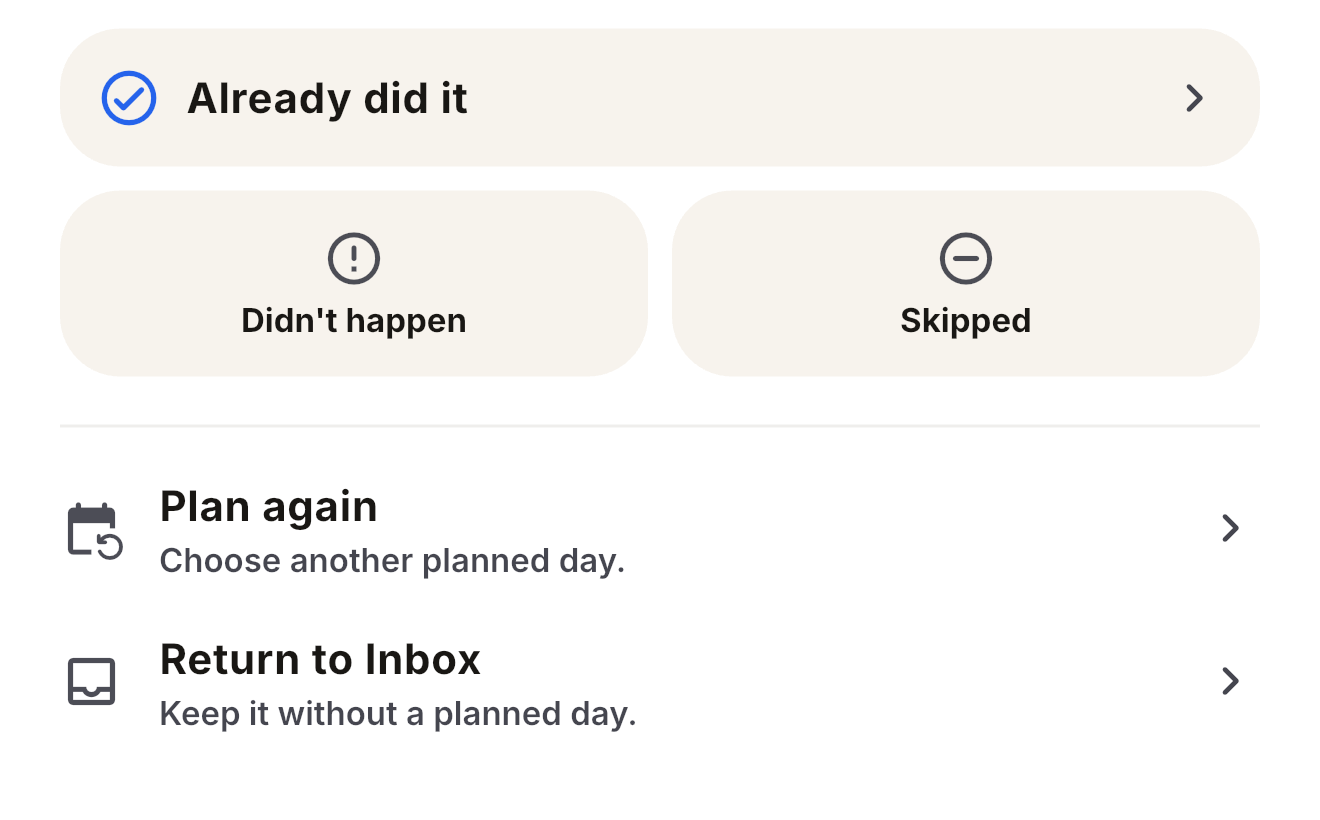
Changing a plan does not write completion, Missed, or Skipped. Those outcomes require your explicit decision.
4. Timeline: What Became True Stays.
Timeline keeps your confirmed outcomes, their dates, and corrections. It separates the day an outcome belongs to from when you recorded it.
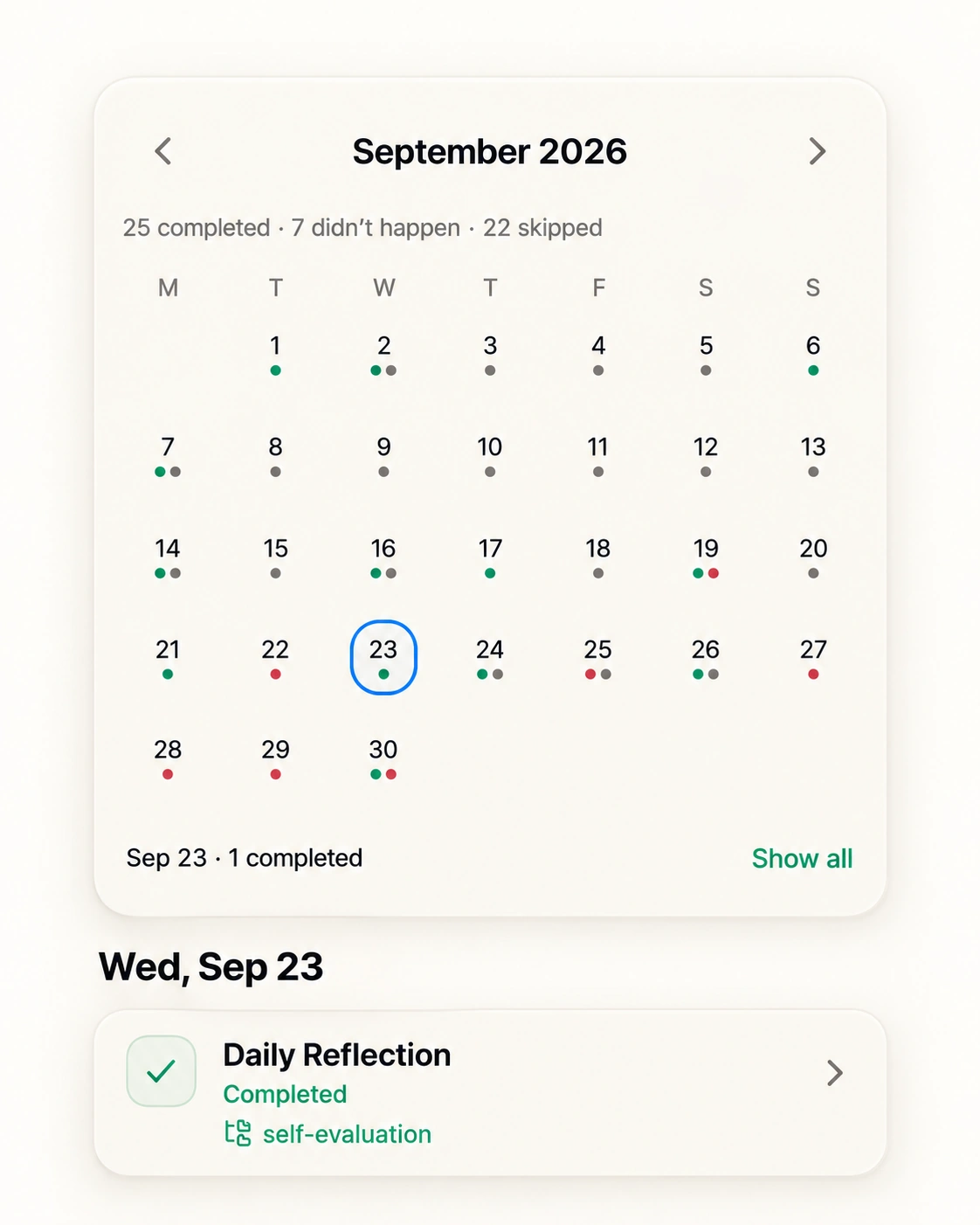
Recording a completion later does not automatically assign it to today. You choose from the permitted truth dates.
5. Home Screen Widgets: Always in View
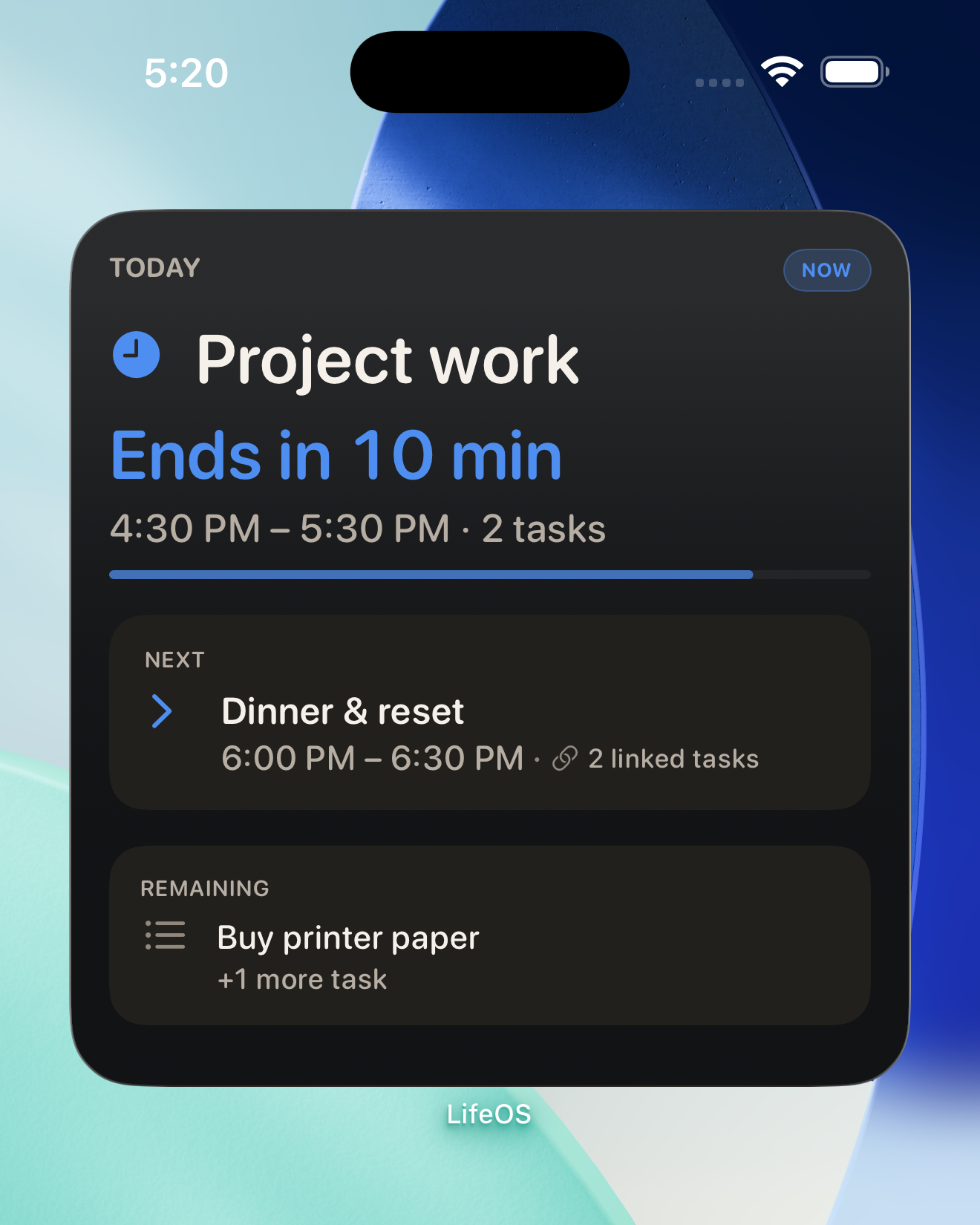
Checking your daily plan shouldn't require opening an app and getting distracted by notifications. LifeOS widgets display your active focus, upcoming time, and remaining tasks directly on your iOS Home Screen.
Common iPhone planning questions
Does LifeOS combine Tasks and time blocking?
Yes. Capture responsibilities as Tasks and reserve time in Schedule. A block can link to Tasks, but the reservation and the responsibilities remain separate.
What if my plans change during the day?
You can change a Task’s plan date or Return to Inbox while keeping it open. See an interrupted-day example. Recording completion, Missed, or Skipped is a separate, explicit decision.
Does LifeOS automatically complete unfinished Tasks?
No. Neither a deadline passing nor reserved time ending records completion. You confirm what happened and retain the permitted truth-date choice for completion.
Resources & Comparisons
Explore more details about LifeOS:
- LifeOS Press & Product Facts — Verified media kit and product architecture.
- Public Changelog — Semantic release history and feature updates.
- LifeOS vs Structured — Comparison of daily planning approaches, published by the LifeOS developer.
Give today a clearer shape.
Free on iPhone and iPad. Plan time. Track reality.